The advancement of technology in voice dictation is undeniable, and many of today’s Smartphones already come with this feature natively. So knowing how to activate voice typing on Android is part of the routine of many. Here, we will show some app to solve: how to activate voice control on android?
That is why we have decided to make a post to explain this point, especially for those who have not yet fully exploited the functionalities of their smartphone.
Applications based on speech recognition technologies have enjoyed unprecedented success in recent years, which is demonstrated by the large number of people who normally use voice communication with their smartphones.
It is already in our hands from dictating a text to send a message to ask the Google Assistant for help, voice recognition technology, and subsequent conversion to text. And here we will help you to use it.
How to activate voice control on Android?
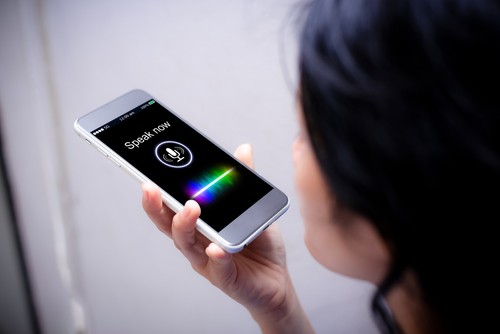
To be able to dictate texts on your Android mobile, you must first activate voice input. It is an obvious step that even most of the time, it is factory configured on Smartphones.
- Open your phone settings.
- Then open “Language and inputs. “
- In the “Keyboards and input methods” section, make sure the voice typing box is checked.
- Once you have validated this point, you should see a microphone-shaped key appear on the keyboard. Please note that the dictation out loud feature is not available in all apps.
If the icon does not appear on the keyboard, this application does not support the voice recognition function. In most well-known brand smartphones, a keyboard developed by the brand itself is used, which usually has the option of activating voice input.
In others, you can see a keyboard provided by Google, known as Gboard. But if your Smartphone is a bit old and is not a recognized brand, you may not have this option to activate.
If you do not have a keyboard with voice input, here we will explain later how to download Gboard from Google, which is by far the most recommended.
Dictate Your Messages On Android
Now that voice input is activated, you can take the opportunity to dictate a message. We explain how to do it:
- Open your email software or SMS messaging.
- Make sure you have a good internet connection.
- Tap on the Microphone key located at the bottom or top of the keyboard.
- The message “Speak now” will appear.
- Start dictating your text with a clear voice. If possible, avoid long sentences and overly complicated words.
- During dictation, the red microphone icon will flash to indicate that the system is recording your phrases.
- As the dictation progresses, the text will automatically appear on the screen.
- When you finish dictating, make any necessary corrections.
- Then tap on “Send. “
- Remember that experience makes the craftsman, so practice to learn more about this functionality of your phone. For example, you may notice some words that you cannot use or fine-tune the speed of your dictation.
Gboard Keyboard App
Gboard is a Google keyboard app with many cool features, with voice dictation being one of the most useful features. Since it is a keyboard app, you can convert your voice to text in any app.
The Google keyboard is one of the most popular applications on the market and it comes packed with many features such as built-in integration with Search, Maps, YouTube, and many more.
One of the basic features is speech-to-text recognition. Why use Gboard? Since it won’t just work as a keyboard, it will also multiply as a speech-to-text interpreter.
The best part about Gboard is that it doesn’t require an internet connection, although it works best with one. Just make sure to download the language pack as follows:
- Go to “Settings” on your Android phone.
- Then tap on “System .”
- Under “System, “tap” Languages and inputs .”
- Now, tap on “Keyboard and input methods. “
- Then tap “Virtual keyboard .”
- Select “Gboard”
- On Gboard, select “Voice typing .”
- And here, activate the “Offline Speech Recognition. “
Gboard works in any application. Regardless of your note, you can use Gboard to record voice memos and convert them to moving text.
Gboard Installation And Configuration On Android
If you don’t have a keyboard with the voice input feature, you can download Gboard from Google on your Android phone.
- Open the Google Play Store application on your mobile phone.
- Type “Gboard” in the search bar.
- Tap on the “Gboard” app in the search results. The application has a multi-colored “G” icon on a blue keyboard.
- Tap “Install” to download the Gboard application on your mobile phone.
- Tap on the Gboard app to open the app. The application can be found on the home screen or you can open Gboard by tapping
- “Open” in the Google Play Store.
- Once you are in the application, you will see the “Enable in Settings” button. Touch it to configure. This opens the “Language & input” settings on your phone.
- Tap the toggle switch next to “Gboard .”
- A pop-up window will appear. Touch “OK. “
- Now tap on “Select input method.” A pop-up window will appear asking you to select the keyboard you want to use.
- Then tap the button next to “Gboard. ” This enables Gboard as your default keyboard.
- In the next step, tap on “Set permissions.” A pop-up window will appear asking you to allow Gboard to access your contacts.
- Tap on “Allow. “
- Now tap on “Done. ” This concludes the Gboard setup process.
Applications That Convert Audio To Text
If you’re always on the go or thinking faster than you can type, these special apps can increase the efficiency, productivity, and secure storage of your recordings in the cloud, with the ability to save time. However, each application has some trade-offs that can generate errors during the conversion process and may require debugging.
Many Android apps allow you to convert audio notes to text no matter where you are. You can then edit those notes and refine them based on more research and ideas. The following applications are ready to help you with any task you need. Let us begin.
1. Google Assistant
The first application that we will show you is Google Assistant. You can ask him to set a reminder, take a note, and send text messages without touching the phone. And it is by default on Android phones.
To create a note with the Assistant, just say, “Ok, Google, take a note.” Keep your note short and simple by automatically stopping the recording if it stops.
The note is saved in the Google Assistant application, which can be accessed by saying, “Show me my notes. ” You can do the same to access your menus.
Google Assistant is pre-installed on Android devices and requires internet access.
2. Google Keep
Google Keep is a note-taking app for Google developers. It uses the same API to convert your words to text as Google Assistant, but its use is slightly different.
Unlike Gboard, which converts your conversation to text only, Google Keep saves a copy of the audio file and the converted version of the application. Getting grades in class becomes a lot easier with this app.
You can read the text and, if there is an error, just preview and correct the audio file. Word prediction is amazing and works with different accents without a hitch.
Google Keep is a great note-taking app. What most people don’t know is that it is also useful for taking voice notes. When you record a voice memo with the Keep option, it automatically copies it to text.
A new note will be created with the typed text and the voice note attached below. Now you can modify the note to your liking. Keep also has many other features like drawing, adding check boxes, labels, etc.
Really useful if you want to quickly convert audio to text and keep the formats saved in the cloud in a single note in the application. Google Keep is completely free, with no ads. It’s fast and easy to use, and the built-in search is powerful.
3. Evernote
Evernote is another scoring app that allows you to take voice notes, but there is a difference. You cannot take voice notes and convert them directly to the text.
Instead, you will need to use the built-in audio conversion feature to convert your voice to text in real-time. If you create voice memos, they won’t turn into text memos.
This means that you will have to choose between the two rather than create and save both, as in Keep.
4. SpeechNotes
SpeechNotes is another note-taking app powered by Google’s Speech-to-Speech API. You can use the speech recognition feature to take notes in the app or type manually using the keyboard.
What separates SpeechNotes from the rest is the sheer number of options available. For example, a built-in script is built-in, you can print or export files to an SD card, support the widget, and much more.
This application has an advantage over other applications in that it does not stop recording automatically after a short time of inactivity, which makes it ideal for recording long conferences.
Other Google apps support precision because they use the same API and add punctuation marks using the dial pad. You can switch to other languages and start recording right away.
There is a handy private keyboard that you can use to enter numbers or special characters while dictating in real-time. This saves a lot of time. You can use this app offline and edit text even if the spelling mode is still running. This means real-time editing.
To close,
Google has mastered the API to recognize and convert speech into text, having the best applications on the market in this area. Google Keep, Gboard, and Assistant work almost seamlessly and provide accurate speech recognition and conversion to text.